> ## Documentation Index
> Fetch the complete documentation index at: https://docs.noimosai.com/llms.txt
> Use this file to discover all available pages before exploring further.
# Editing Your Website
> This guide explains how to edit your website’s text, structure, design, and functionality using chat or code.
## Overview
Whether you have created a new website or imported an existing one, you can edit it via chat or code.
After adjusting text, structure, design, CTAs, forms, and external integrations, preview your changes before publishing or updating.
## Editing via Chat
You can request website modifications by sending natural language instructions through chat.
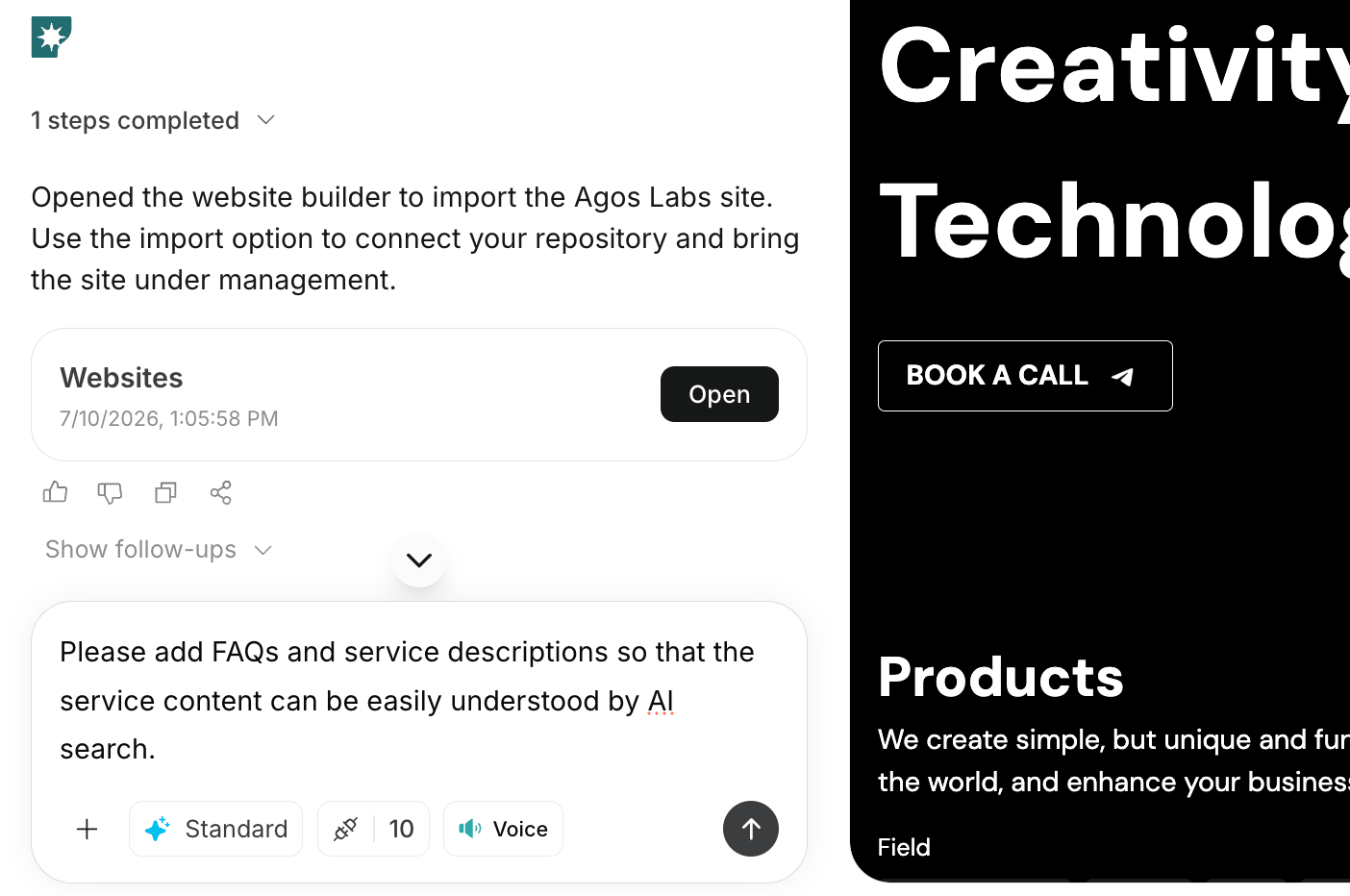 Chat-based editing is suitable for changes such as:
* Modifying headings and body text
* Adding or removing sections
* Rearranging the order of sections
* Changing CTA wording or placement
* Adjusting the design style
* Optimizing layout for smartphones
* Adding navigation paths for blog, contact, pricing, etc.
## Examples of Editing Instructions
```text theme={null}
Please adjust the headings and body text to align with the search intent for "BtoB marketing support" and "lead generation support."
```
```text theme={null}
Add FAQs and service descriptions to make the service content easier to understand with AI search.
```
```text theme={null}
Add a pricing section that allows comparison of three plans.
```
```text theme={null}
Unify all CTAs to "Book a Free Consultation" and place them at the end of each section.
```
```text theme={null}
Organize the feature introductions into card format to avoid overly long pages on smartphones.
```
## Editing Code Directly
If needed, you can directly modify the website’s code to make changes.
When editing code directly, you do not need to send the changes via chat. Saving your edits will immediately reflect them in the working website, which you can preview.
Chat-based editing is suitable for changes such as:
* Modifying headings and body text
* Adding or removing sections
* Rearranging the order of sections
* Changing CTA wording or placement
* Adjusting the design style
* Optimizing layout for smartphones
* Adding navigation paths for blog, contact, pricing, etc.
## Examples of Editing Instructions
```text theme={null}
Please adjust the headings and body text to align with the search intent for "BtoB marketing support" and "lead generation support."
```
```text theme={null}
Add FAQs and service descriptions to make the service content easier to understand with AI search.
```
```text theme={null}
Add a pricing section that allows comparison of three plans.
```
```text theme={null}
Unify all CTAs to "Book a Free Consultation" and place them at the end of each section.
```
```text theme={null}
Organize the feature introductions into card format to avoid overly long pages on smartphones.
```
## Editing Code Directly
If needed, you can directly modify the website’s code to make changes.
When editing code directly, you do not need to send the changes via chat. Saving your edits will immediately reflect them in the working website, which you can preview.
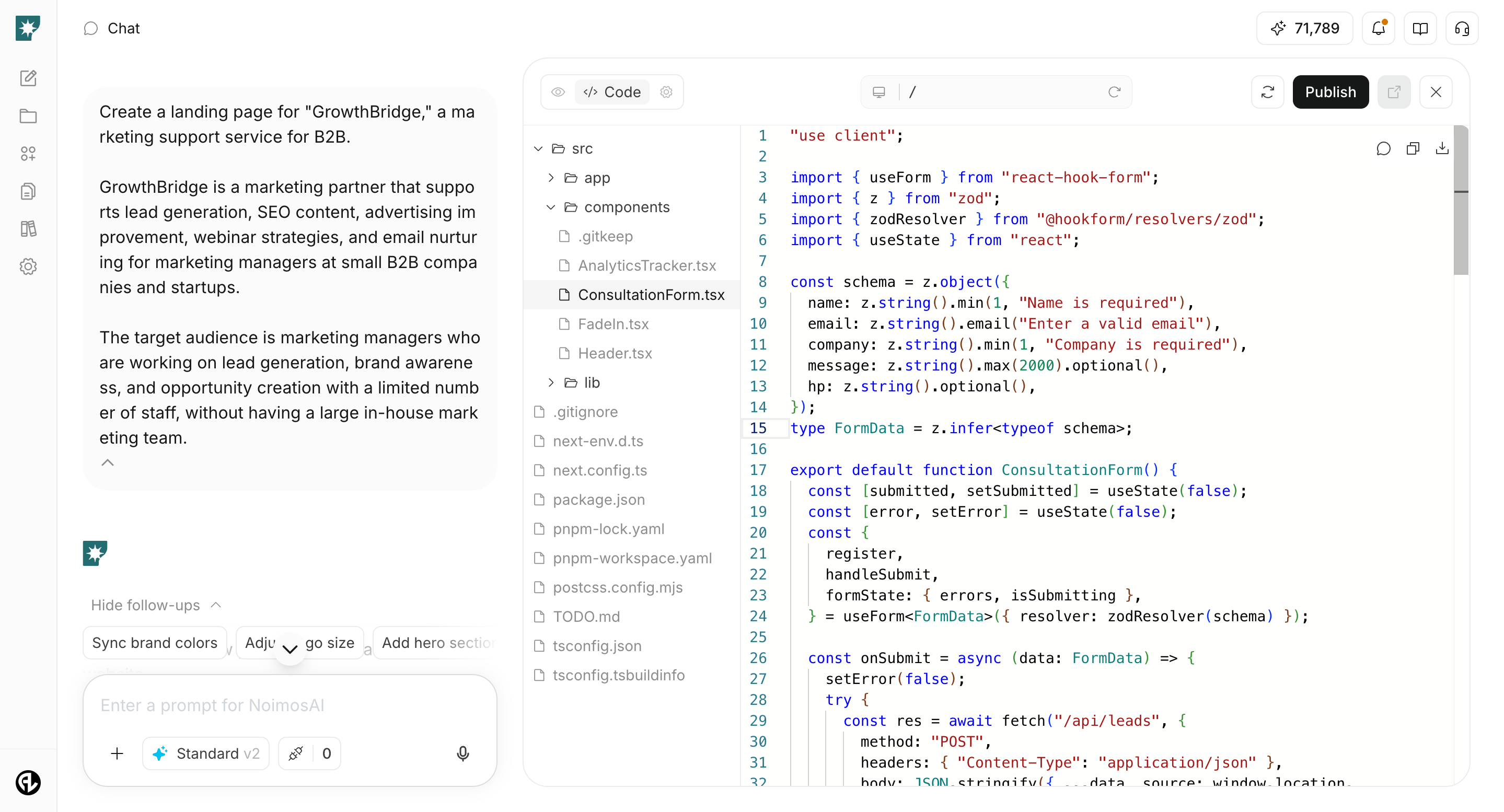 For fine adjustments to layout, wording, styles, or display conditions that cannot be fully handled via chat, you can review and edit the code directly.
Use chat to request AI-assisted fixes or to communicate changes in natural language.
Direct code editing is suitable for tasks such as:
* Fine-tuning appearance details like spacing, font size, and colors
* Adjusting HTML structure or display order within sections
* Verifying detailed behavior of buttons, links, and forms
* Customizing code for external tools or embedded elements
* Developers reviewing and refining AI-generated content
## What to Check After Editing
After editing, use the preview to verify:
* Whether the primary message is clear
* Whether CTAs are easy to find
* Whether any important information is missing
* Whether there are no display issues or awkward spacing
* Whether links and forms behave as intended
Minor wording can be reviewed collectively before publishing. First, prioritize confirming that the structure and navigation meet your goals.
Saving changes does not publish them to the live site. To update the public URL, review your changes and then publish or update.
## Related Pages
* [Website Basics](/help-center/website/website-basics)
* [Creating a New Website](/help-center/website/create-and-edit-website)
* [Creating from an Existing Website](/help-center/website/import-existing-website)
* [Publishing and Updating Your Website](/help-center/website/publish-and-update-website)
* [Managing Website Settings](/help-center/website/manage-website-settings)
For fine adjustments to layout, wording, styles, or display conditions that cannot be fully handled via chat, you can review and edit the code directly.
Use chat to request AI-assisted fixes or to communicate changes in natural language.
Direct code editing is suitable for tasks such as:
* Fine-tuning appearance details like spacing, font size, and colors
* Adjusting HTML structure or display order within sections
* Verifying detailed behavior of buttons, links, and forms
* Customizing code for external tools or embedded elements
* Developers reviewing and refining AI-generated content
## What to Check After Editing
After editing, use the preview to verify:
* Whether the primary message is clear
* Whether CTAs are easy to find
* Whether any important information is missing
* Whether there are no display issues or awkward spacing
* Whether links and forms behave as intended
Minor wording can be reviewed collectively before publishing. First, prioritize confirming that the structure and navigation meet your goals.
Saving changes does not publish them to the live site. To update the public URL, review your changes and then publish or update.
## Related Pages
* [Website Basics](/help-center/website/website-basics)
* [Creating a New Website](/help-center/website/create-and-edit-website)
* [Creating from an Existing Website](/help-center/website/import-existing-website)
* [Publishing and Updating Your Website](/help-center/website/publish-and-update-website)
* [Managing Website Settings](/help-center/website/manage-website-settings)