

Overview
The chat input settings let you adjust the speed and quality of responses, how often AI asks for confirmation, the information it references, and the features it uses for each request. Choose settings from+, Response mode, Approval mode, and Integrations below the input. Configure only the items needed for your goal, then send your request.
Response mode
Response mode lets you choose the processing power used for a task and the balance between speed and quality.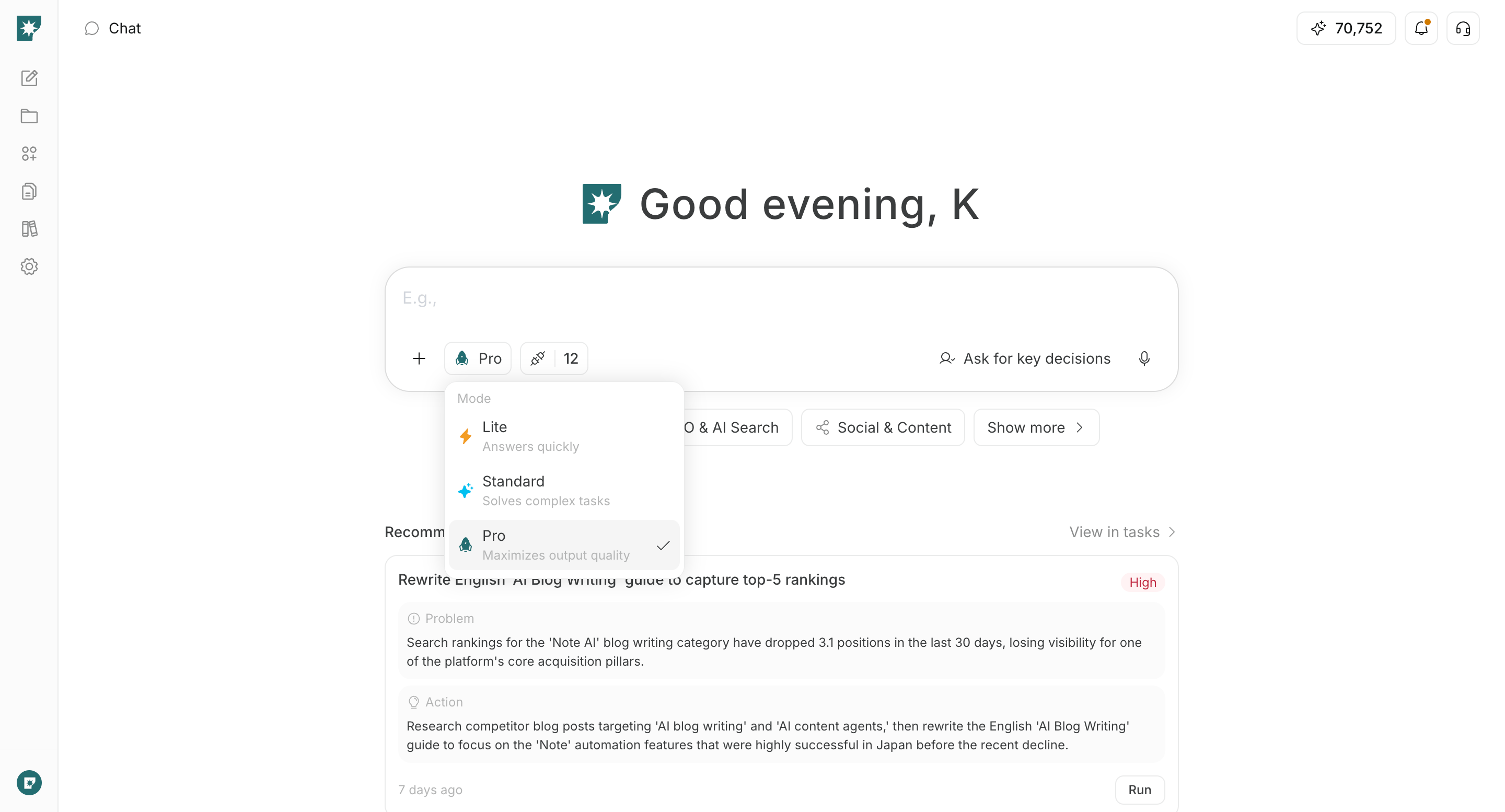
Lite: Prioritizes quick responses. Best for simple questions, summaries, brainstorming, and short-form writing.Standard: Handles complex tasks while balancing speed and quality. This is the default mode and a good choice when you are unsure which mode to use.Pro: Prioritizes output quality. Best for research, strategy development, long-form deliverables, and requests with multiple requirements.
Approval mode
Approval mode controls how often AI asks questions or requests confirmation while creating a deliverable.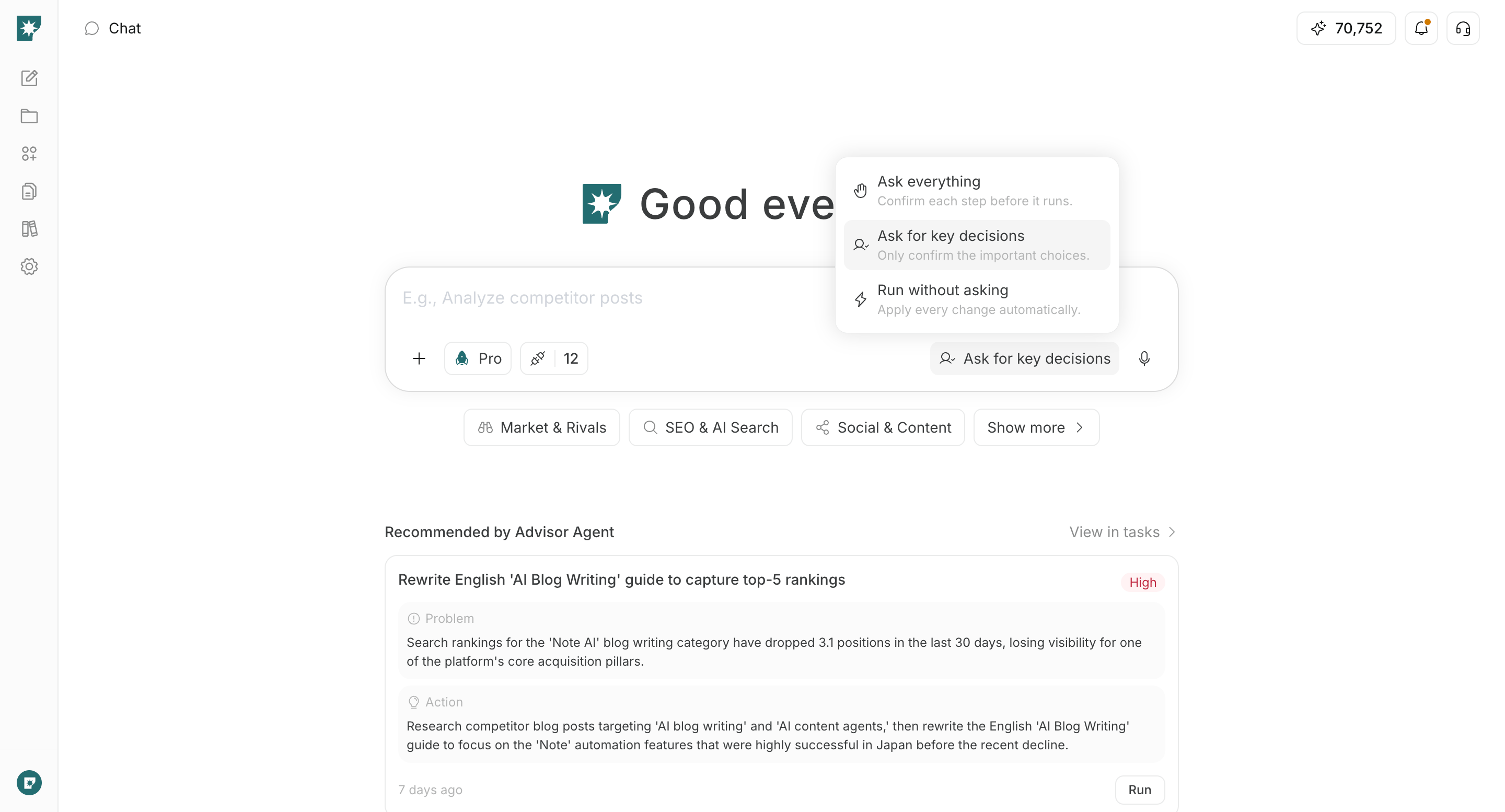
Ask everything: Confirms each step before carrying it out. Use this when you want to decide the ideas, format, tone, and other details yourself at each stage.Ask for key decisions: AI fills in details from context and asks only for major decisions, such as choosing an idea or giving final confirmation before generation. This default setting makes it easy to balance speed and oversight.Run without asking: Skips optional questions and confirmations so AI can choose reasonable defaults and proceed. If the input is insufficient to continue, it may ask for the information it needs.
Even when
Run without asking is selected, actions that explicitly require approval—such as publishing, sending, or scheduling—are not approved automatically.AI Behavior Settings
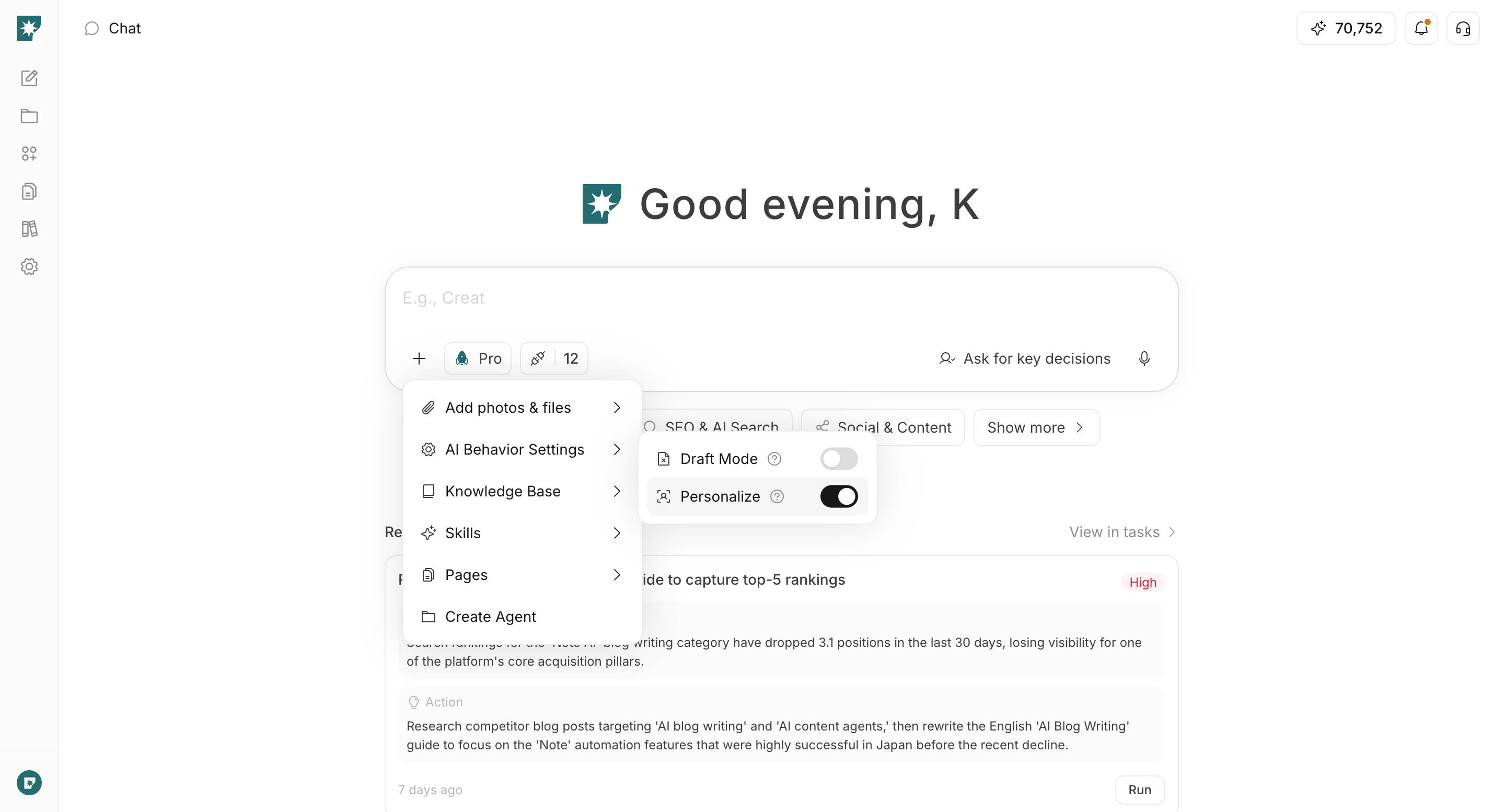
AI Behavior Settings lets you control the generation process and whether saved context is reflected in the output. Open AI Behavior Settings from + below the input.
Draft mode
Draft mode adds a draft stage before generating the finished version.
- On: First creates a draft, such as an outline or specification. Best when you want to review and adjust the direction before proceeding to the finished version.
- Off: Skips the draft stage and generates directly from your request. Best for short requests or when you want to review a prototype immediately. It is off by default.
Personalize
Personalize reflects context such as preferences and styles saved in the workspace in the output.
- On: References saved information and produces output with a tone and content suited to the workspace. This is appropriate for normal work and is on by default.
- Off: Does not use saved personalization context and focuses on the current instructions and attached reference information. Best when comparing neutral options or trying a direction different from your usual one.
Draft mode controls the generation process, while Approval mode controls how often AI asks for confirmation along the way. You can combine them, such as creating a draft while asking only about key decisions.Photos and files
Add photos & files lets you attach your own documents and media directly to the current request.
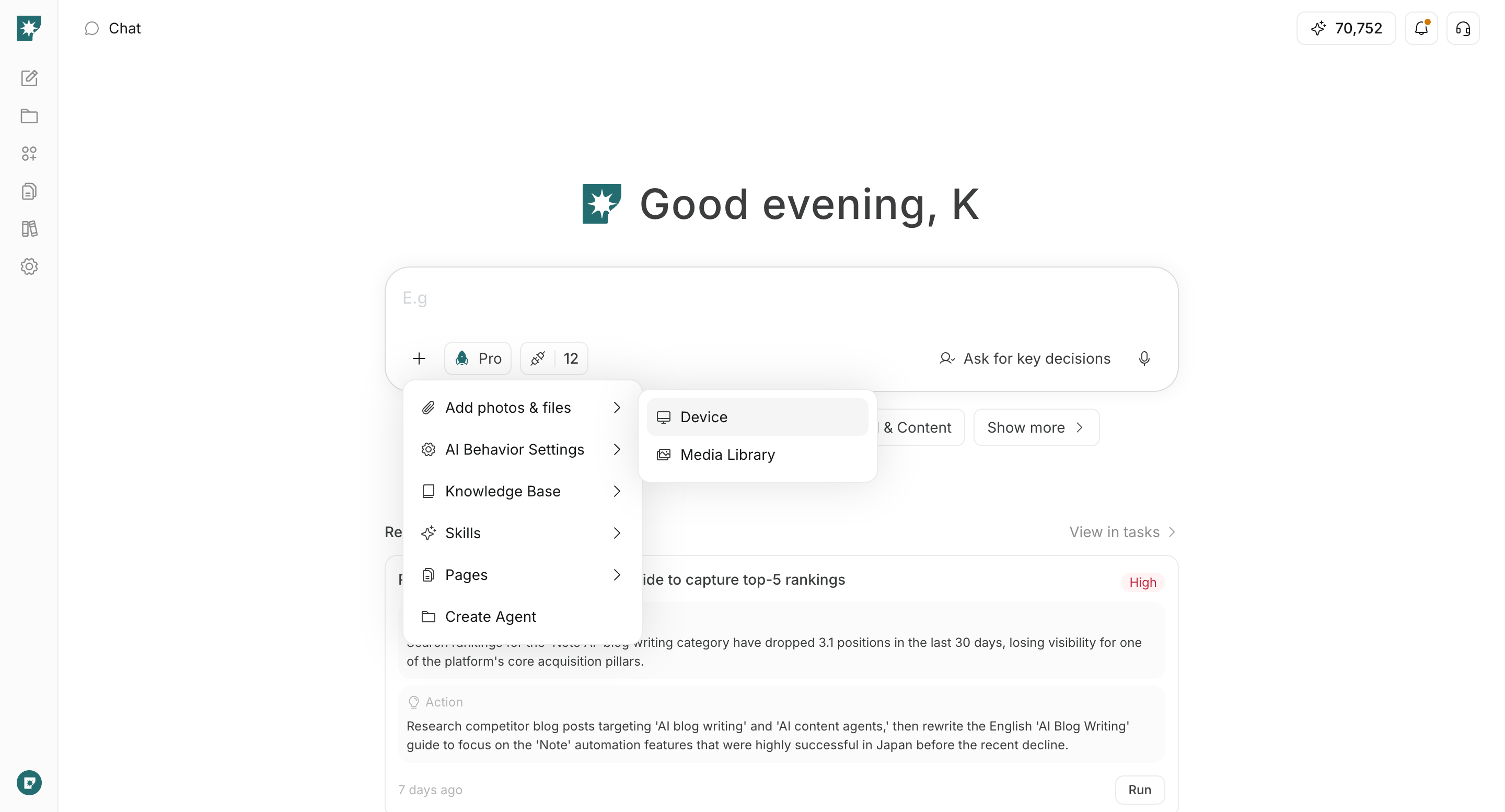
Add photos & files from + below the input, then select a file on your device or an asset from the media library. In your request, also explain how the attached material should be used.
For example, you can use it to summarize a PDF, create something based on an image, analyze a CSV, or revise an existing draft. See Upload files for supported formats and limits.
Knowledge Base
Knowledge Base lets you specify a dataset from the materials accumulated in your workspace for the current request to reference.
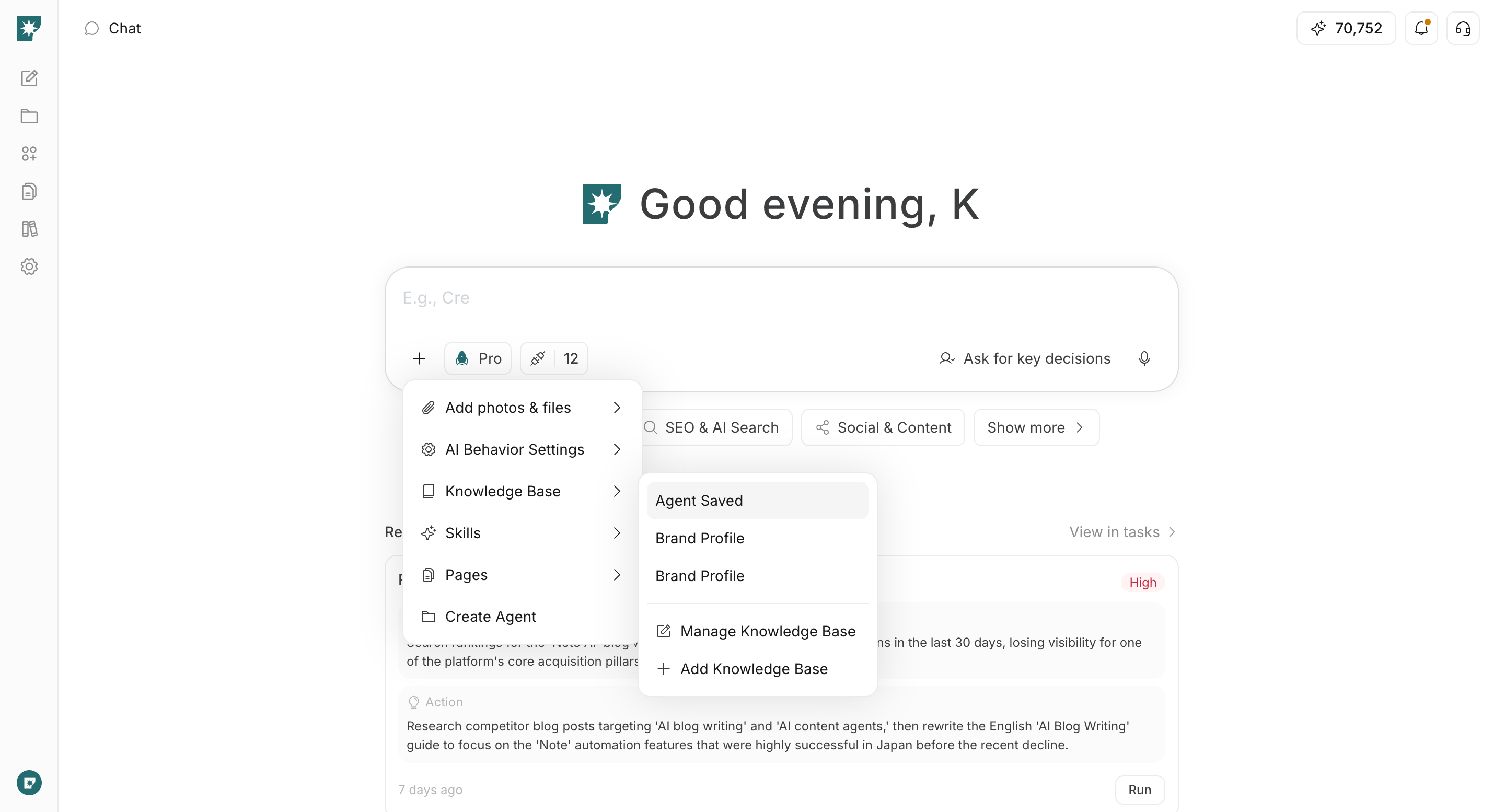
Knowledge Base from + below the input and select a dataset. The selected dataset is attached to the input and used as the reference scope when AI creates a response or deliverable.
It is well suited to information reused across multiple requests, such as internal rules, product information, and research materials. Add a new dataset or edit an existing one from Add Knowledge Base or Manage Knowledge Base in the same menu.
Skills
Skills lets you apply reusable procedures saved in the workspace to the current request.
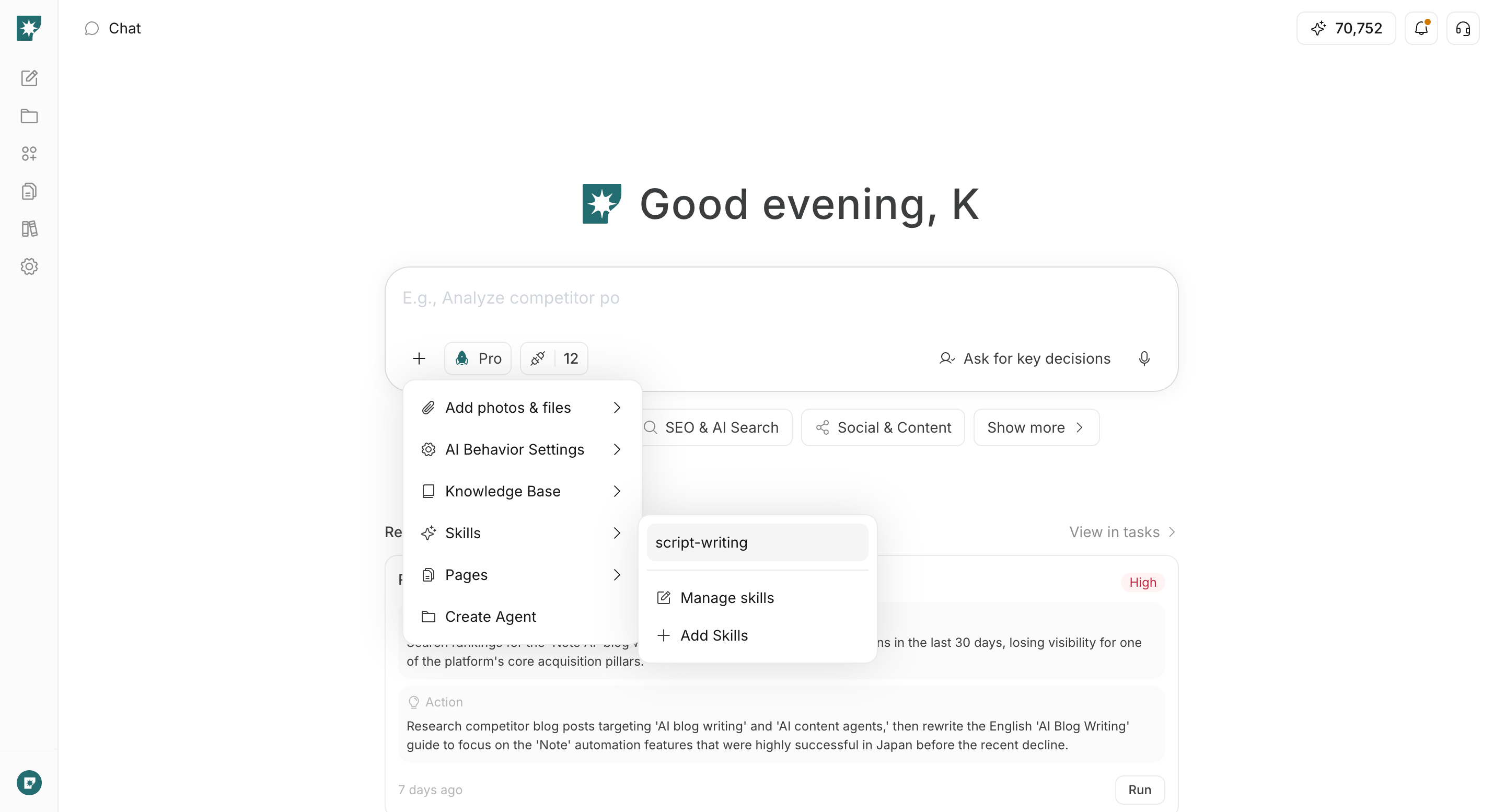
Skills from + below the input and select an available Skill. Once selected, /skill-name is added at the beginning of the input; enter your specific request after it. You can also type / directly in the input to search for and select a Skill.
Skills are useful for work where you do not want to re-enter the same instructions each time, such as writing articles in a fixed structure, following internal review procedures, or applying a recurring analysis method. Edit an existing Skill from Manage Skills or create one from Add Skills.
Pages
Pages lets you reference an existing page in the workspace in the current chat.
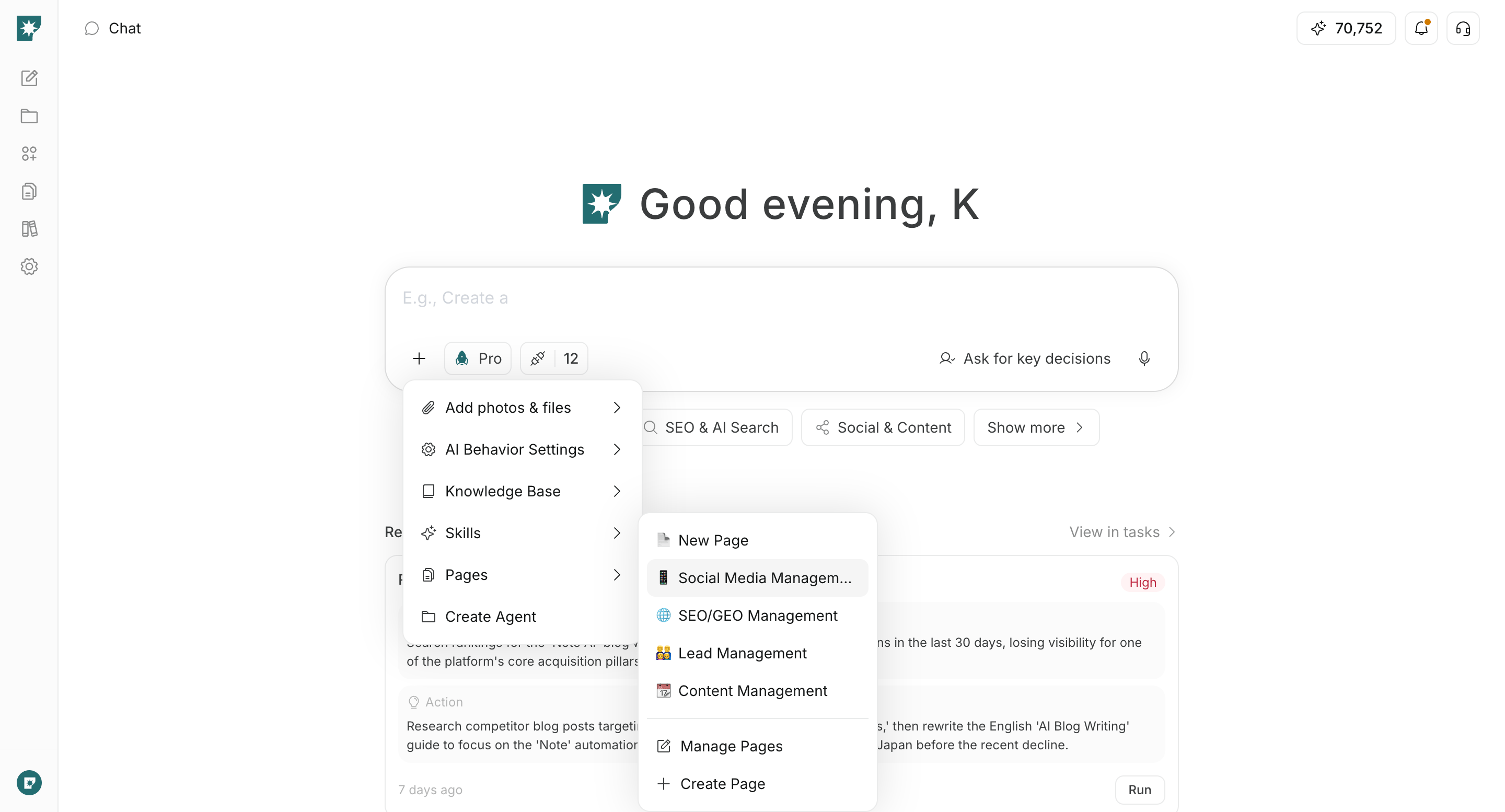
Pages from + below the input and select the page you want AI to reference. The selected page’s content is passed to AI, so you can make requests such as “Summarize this proposal” or “Create a recommendation based on this page.”
As a guideline, use Add photos & files for temporary files, Knowledge Base for collections of materials, and Pages for information edited and shared in the workspace.
Creation modes
Creation modes indicate that you want to create a specific feature from the chat content rather than receive a normal response.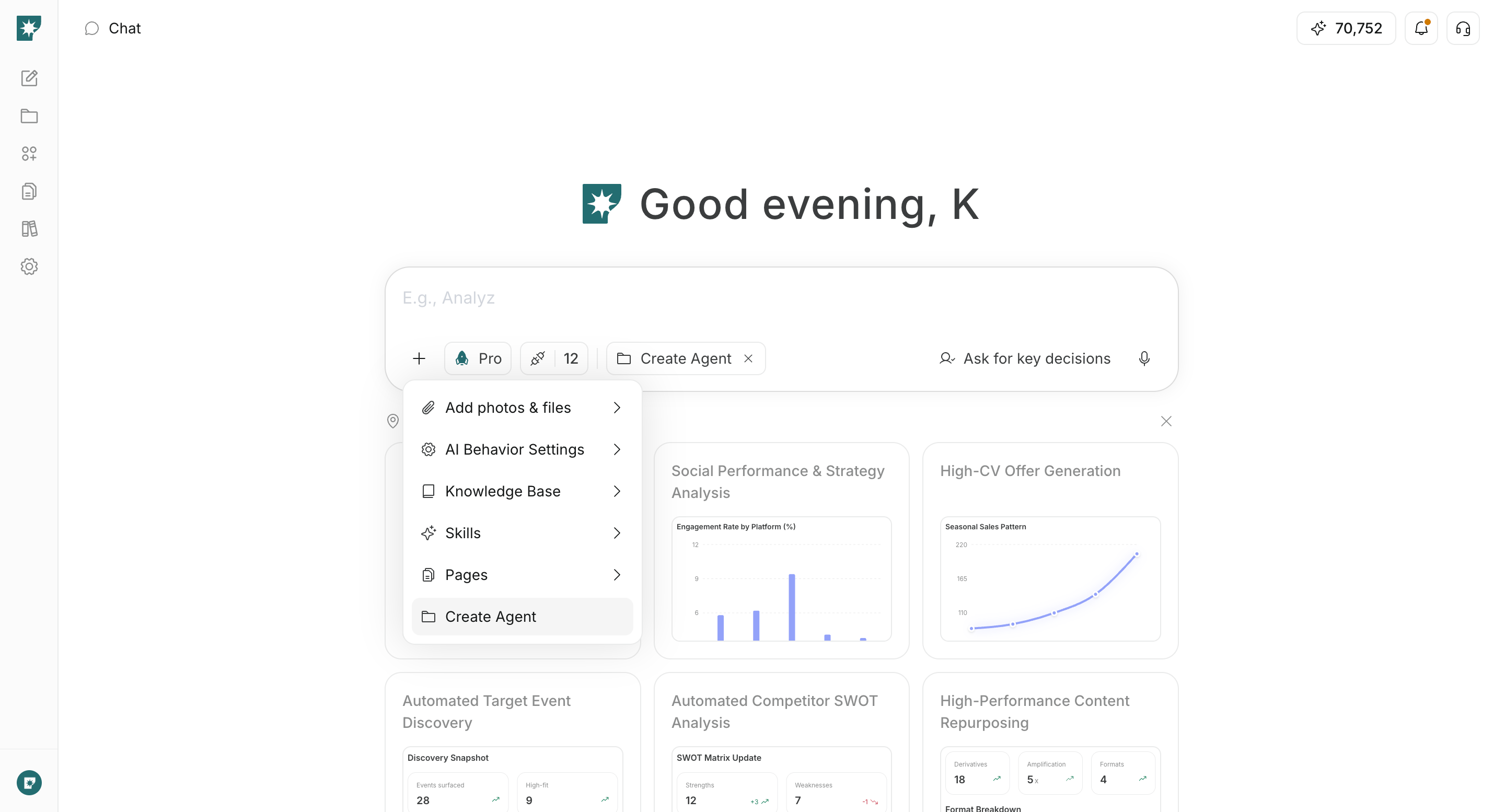
Create Agent: Organizes the goal and actions through conversation, then proceeds to create an agent that runs continuously.Create Page: Proceeds to create a new page based on the conversation. Select it fromCreate Pagein thePagesmenu.
Integrations
Integrations controls the external services and accounts that AI can use in the current chat.
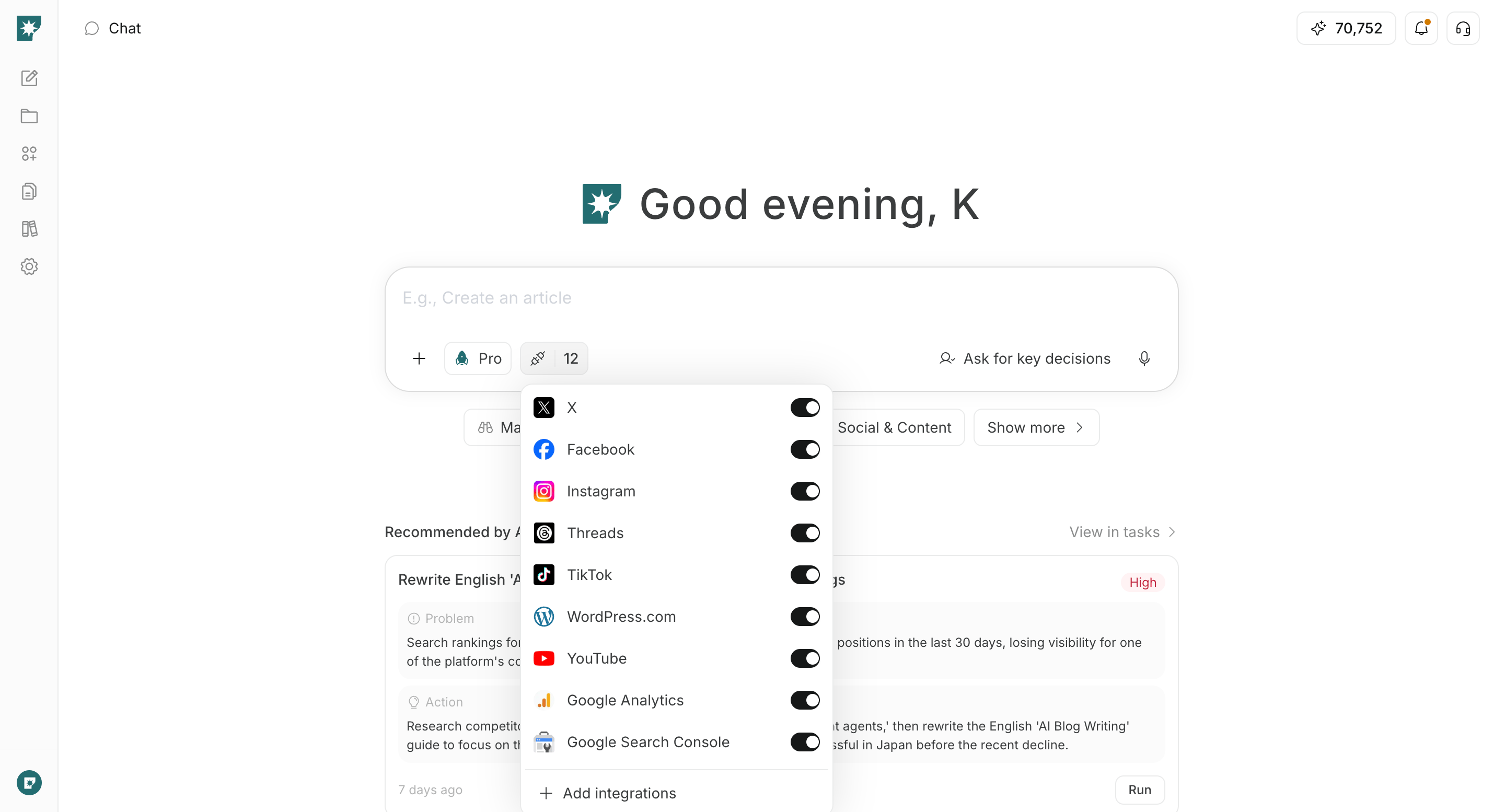
Integrations below the input and enable the integrations you want to use. If you request data retrieval or actions in a connected service—not just search or content creation—make sure the relevant service and account are connected.
Connect an unconnected service from Add integrations. Removing integrations you do not need makes it clear what AI can use for the current request.