

Overview
Use this page to manage team access and assign the correct role at Team scope. In NoimosAI, each person belongs to a Team role first, then gets assigned to one or more Workspaces as needed.Before You Start
Confirm access conditions before managing members.- Open
Team Settings>Members. AdminandMembercan invite people.Guestcannot invite members or create Workspaces.
Team Role Definitions
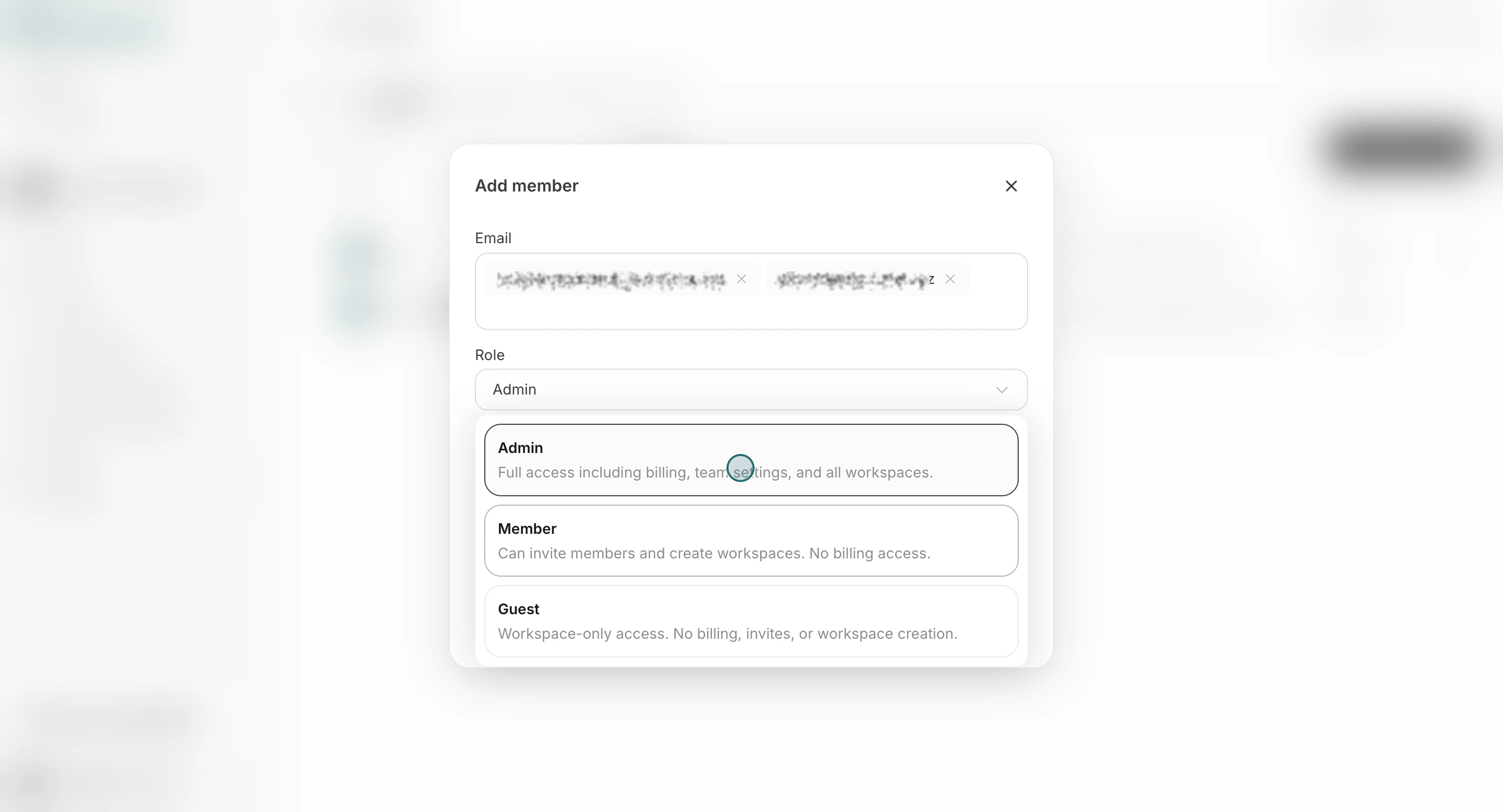
Use this role model as the baseline before inviting anyone.Admin: full Team access, including billing, member management, and Workspace management.Member: can invite members and create Workspaces, but cannot access billing.Guest: can access only assigned Workspaces, and cannot access billing, invite members, or create Workspaces.- If someone is invited as Workspace
EditororViewer, they appear asGuestat Team level.
Invite New Members
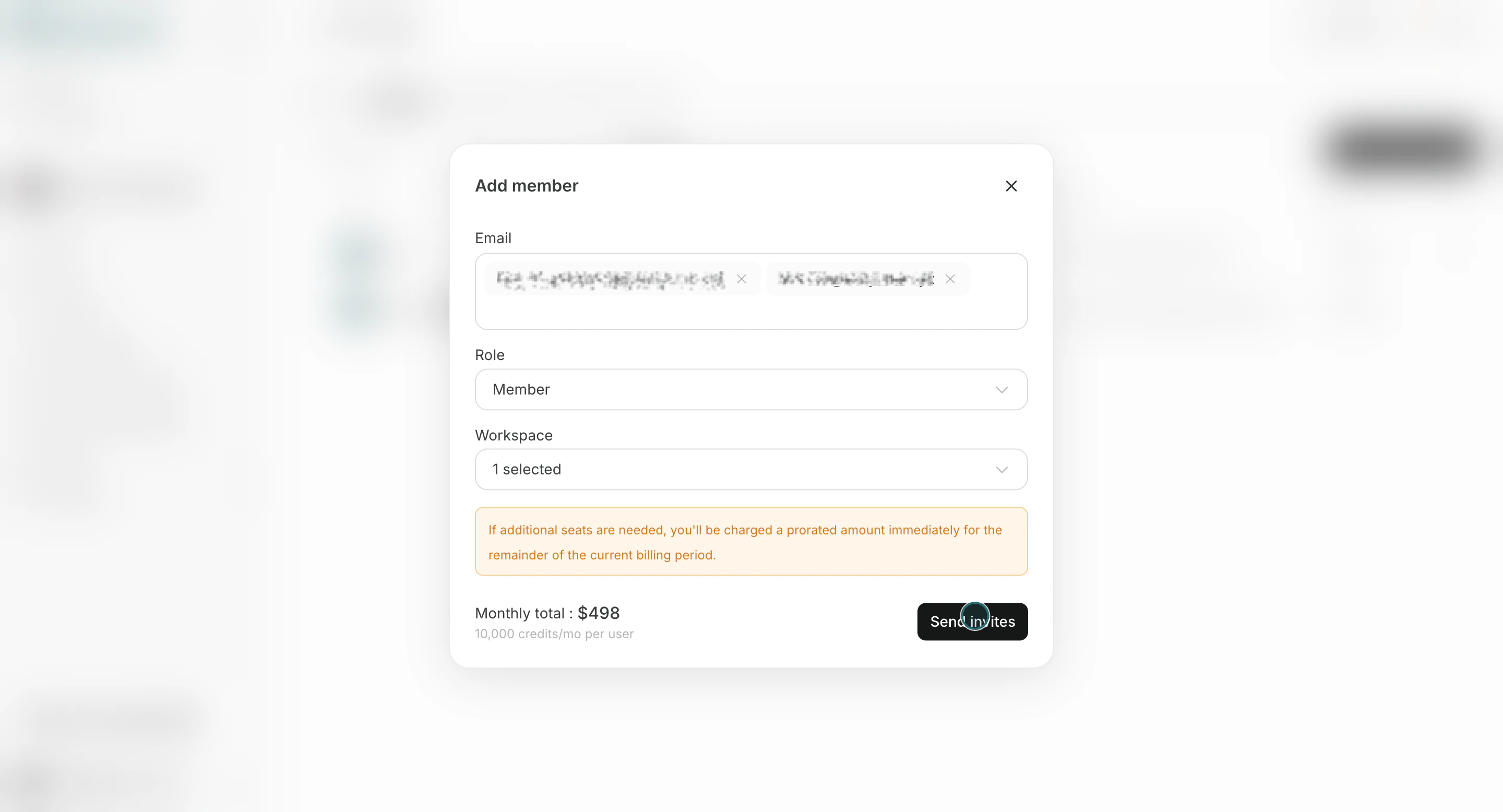
Use this flow to send invitations with the correct Team role and Workspace assignment.- Click
Add members.
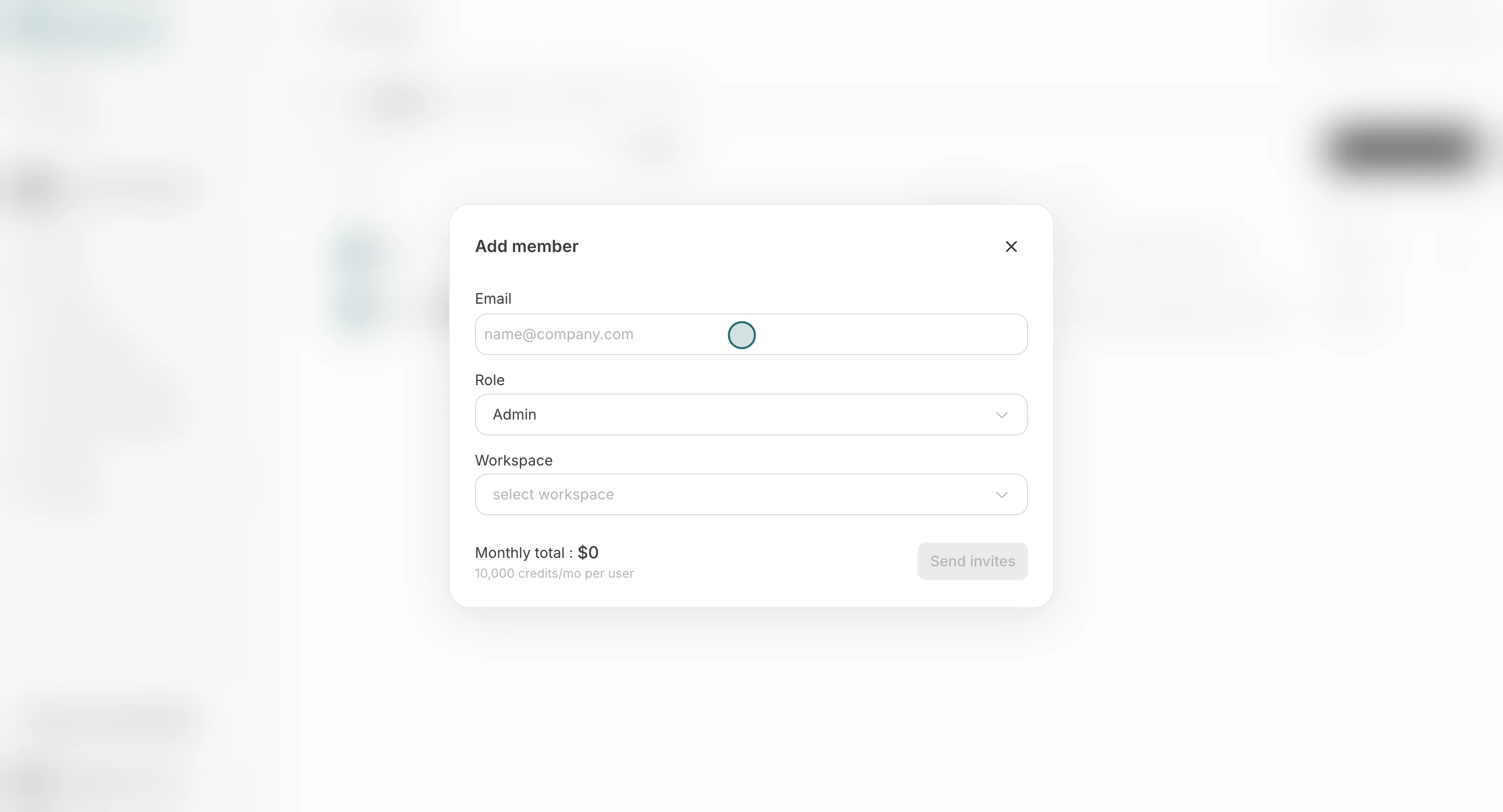
- Enter the member’s email address. You can invite multiple people at once when they share the same role and workspace assignment.
- Select a Team role (
Admin,Member, orGuest).
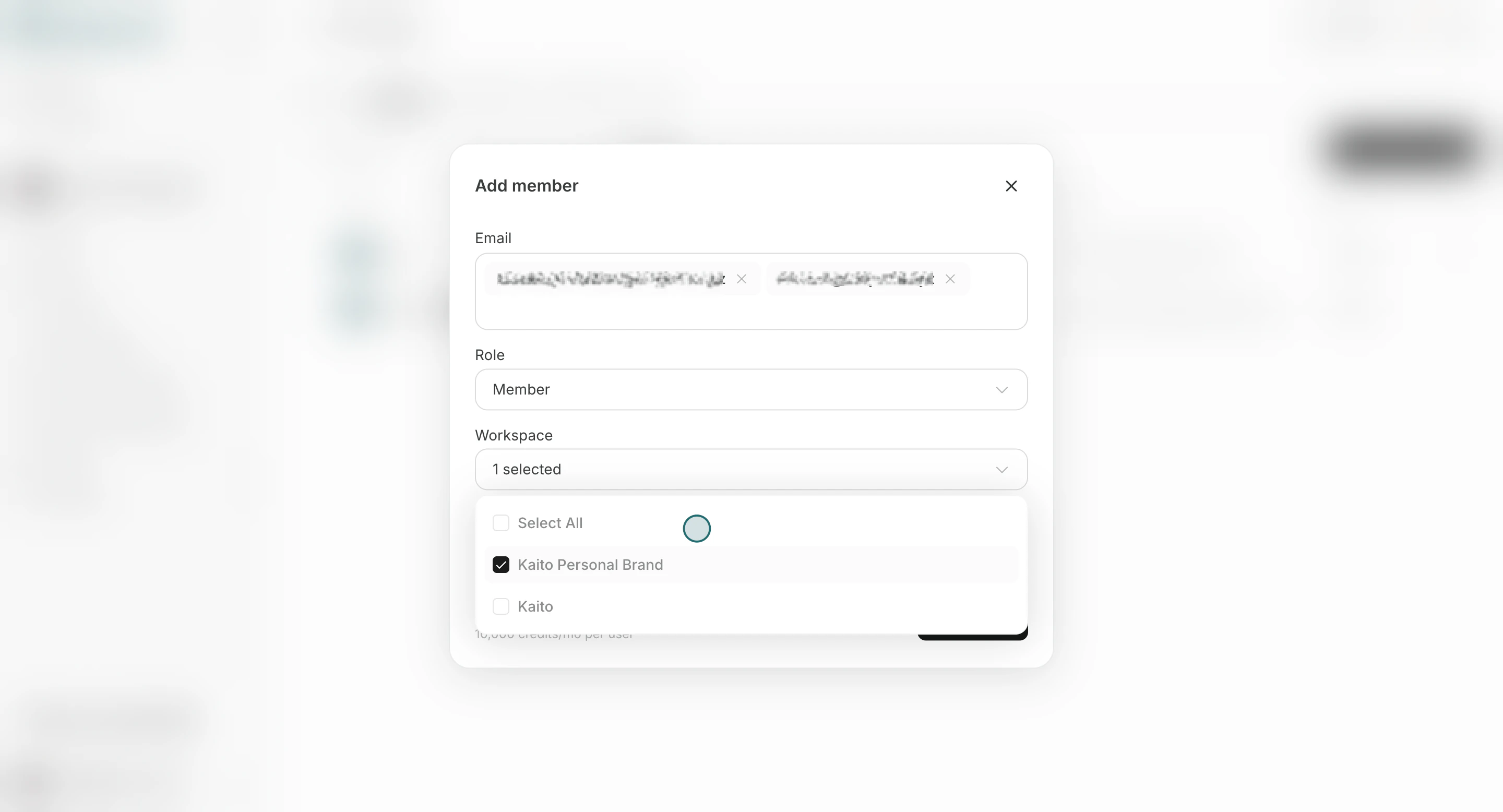
- Select which Workspaces the member should join.
- Click
Send invites.
Change Member’s Role
Use this section to update access level when responsibilities change.- Open the row menu and click
Manage role.
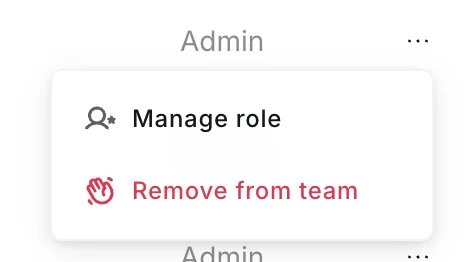
- Change the role and click
Save.
Remove Member
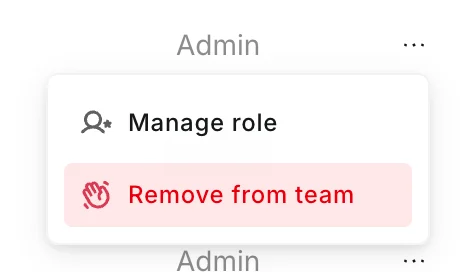
Use this section when someone should no longer access the Team.- Open the row menu and click
Remove from team.
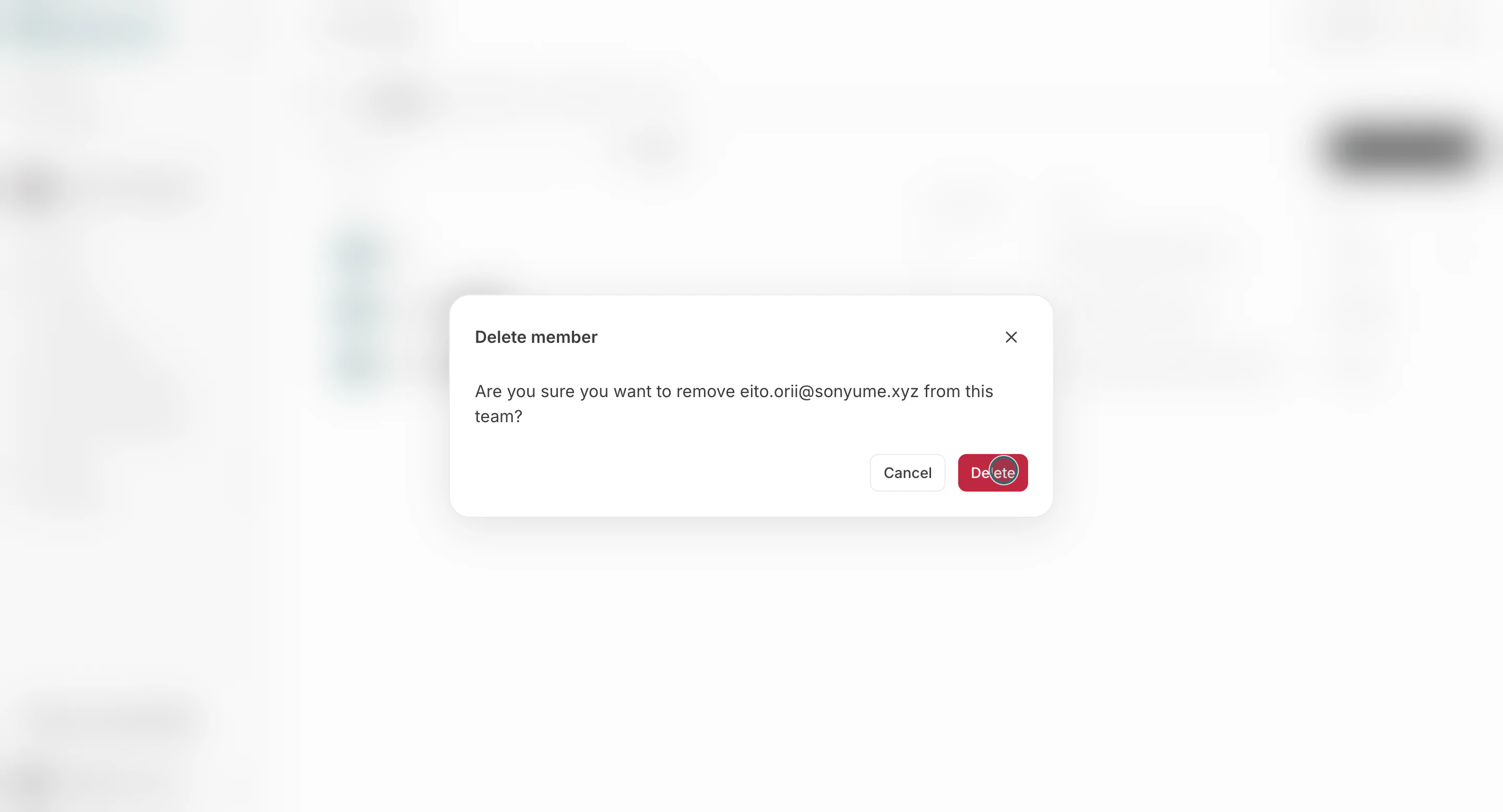
- Confirm deletion.
Notes
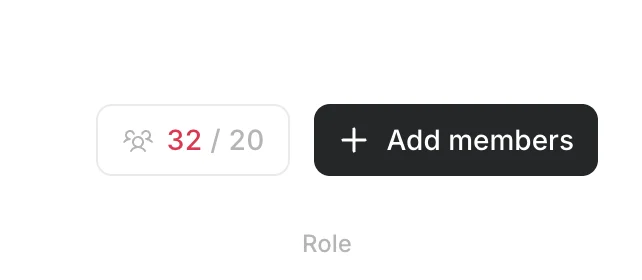
Review these constraints before finalizing changes.- Team seat limits can prevent additional invitations.
- Removing a member from the Team also removes their Team-level access.